Skip to content

Mobile Printing

Rogers Free Library offers printing from our on-site public computers as well as wirelessly using the applications below.

Printing is charged at the following rates for all services:

Black & White: $0.15 per page
Color: $0.50 per page

Payments are cash only

There is no double-sided mobile printing effective 02/16/2026

The library’s printer ID is 108971

How To Print

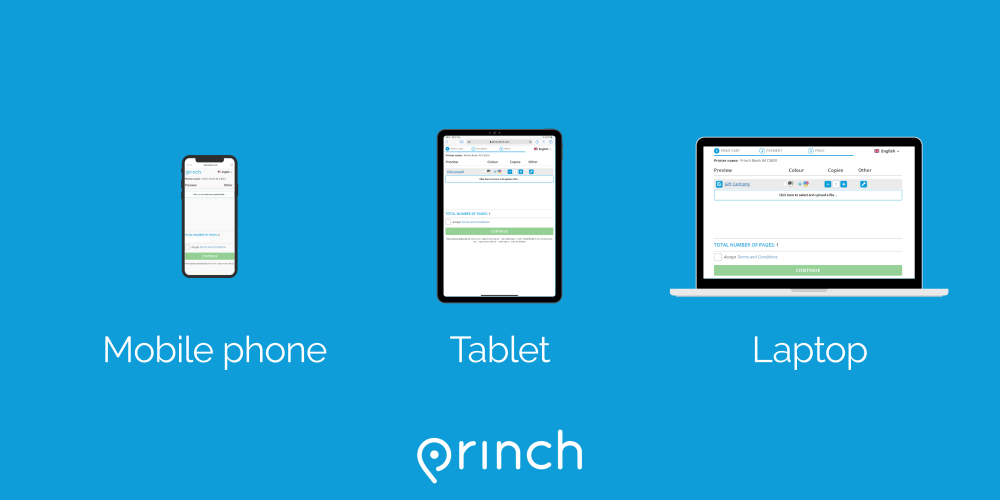
  1. Scan the QR code located near the printer or go to print.princh.com/?pid=108971
  2. The printer ID listed above should be automatically entered, but if not please use our printer ID 108971.
  3. Upload your documents
  4. Choose your print settings
  5. Accept the terms and conditions and click “Continue”
  6. Enter your email address and click “OK”
  7. Pay at the circulation, reference, or children’s service desks
  8. Take your print job from the printer

You can also watch the Princh video guides here for the mobile web and here for a laptop.

Click here for the Apple iOS App

  1. Install the Princh app for iOS
  2. Open the document, click Share
  3. Select “print” from the menu and then click Share again (this is especially important for multi-page documents)
  4. Find the Princh app and select it
  5. Enter the printer ID 108971 or scan a QR code located near the printer
  6. Choose your print settings and click “Print”
  7. Accept the terms and conditions, then click “Continue”
  8. Enter your email address and click “Submit Print Job”
  9. Pay at the circulation, reference, or children’s service desks.
  10. Take your print job from the printer

You can also watch the Princh video guide here.

Click here for the Andorid Google Play App

  1. Install the Princh app for Android
  2. Allow the app to display over other apps in your settings
  3. Open the document, click the three dots and then press Print
  4. Click “Select a Printer”, press Princh, and click on the round Print icon button
  5. Enter the printer ID 108971 or scan a QR code located near the printer
  6. Choose your print settings and press “Print”
  7. Accept the terms and conditions, then click “Continue”
  8. Enter your email address and click “Submit Print Job”
  9. Pay at the circulation, reference, or children’s service desks.
  10. Take your print job from the printer

You can also watch the Princh video guide here.


Helpful Tips

  • Remember the name and location of your file before you begin.
  • If you are printing from Google Drive, please download the document first to ensure it prints correctly.
  • If you do not remember the instructions for how to send a print job using your phone, check the “print document” button on the princh app home page. followed by “show me how” to see the usage tutorial again.
  • If you would like to print from a webpage:
    • On your smartphone or tablet, the instructions to follow are the same as for printing a document with your app
    • On a laptop, please save your page as a PDF then send that document to print
Princh Terms and Conditions

The library is closed on Monday, February 16, 2026 in observance of President's Day.

X